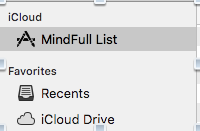
MindFull List is a simple checklist program that syncs your checklists with other Macs on your iCloud account.
Mac OS X 10.10 (Yosemite) or better is required.
Mac OSX Help
MindFull List uses iCloud.
iCloud information at the bottom of this page
Creating a New List
Deleting a LIst
Moving a List
Adding an Item to a List
Deleting an Item from a List
Dragging an item from one list to another
Open the Today List
Sharing Lists
Rename a LIst
Opening a LIst
Creating a New List
Creating new lists, Deleting a list, Moving a list
are all done within the MindFull List app.
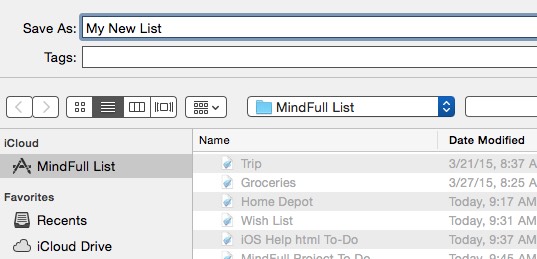
Select New... from the File Menu in MindFull List.
Then select Save from the File Menu.
The save location should default to iCloud drive.
Give your new list a name and save it.
The example below saves a file called My New LIst.
It is important to save your lists in this location so they will sync with other devices on your iCloud account.
NOTE: The examples below show the location in a folder named MindFull List.
That folder needs to be in iCloud drive. You can create that folder using the FInder.
It is not necessary to have that folder but it helps you organize your lists in one place.
Deleting a List
Lists are stored in iCloud drive.
To delete a list file, first select Open... from the File Menu in the MindFull List app.
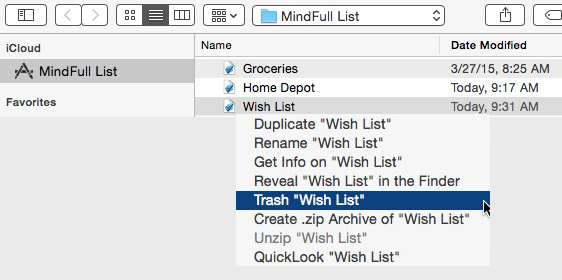
Then right-click (or control-click) on the list you want to delete.
Then select Trash...
The example below trashes the Wish List file.
Moving a list to iCloud
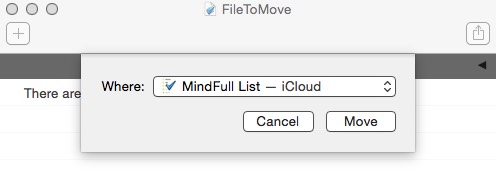
If you have a list that is not in iCloud, you can move it there.
Select Open... from the FIle Menu in MindFull List and open the file.
Then select Move To... from the FIle Menu and move the file into iCloud drive.
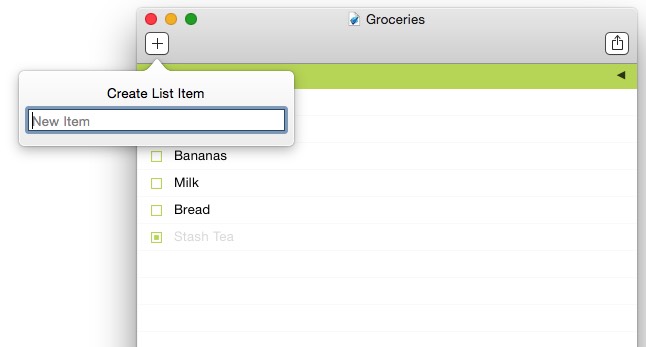
Adding an item to a list
Simply click on the Plus icon at the top left of the list.
Deleting an Item from a list
Click on the checkbox to uncheck the item.
Then click on the item name to highlight it.
Hit the Delete key.
Dragging an item from one list to another
Open two list windows. Then click just to the right of the text in the item you want to drag and drag that item to the other window.
It will make a copy of the item in the other list.
Open Today Document
Opens the Today list.
Note that this only has items that you add. It does not automatically add items from other lists.
Do NOT delete the Today list. It is used by Apple Watch for glances.
Sharing Lists
You can share your list with other people in two ways:
1. Share as a text list
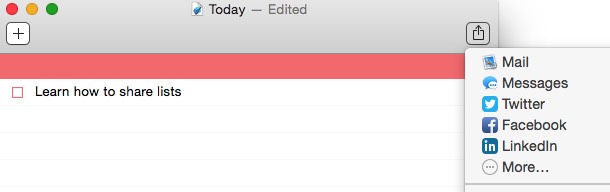
Open a list and then click on the Share icon at the upper right of the window.
Then select how you want to share.
2. Share as a MindFull List File with Dropbox
You can share your MindFull list file with other users using Dropbox.
Select Save As... from the FIle Menu and choose a shared dropbox folder.
When the other person double clicks on that list in their Dropbox folder, it will open in MindFull List on their Mac.
The other user will need to have a Dropbox account on their Mac and have MindFull List installed.
The other person can also share that list with their other devices (Macs, iPhones etc) by selecting Move To... from the File Menu and then move it to the MindFull List folder on their Mac.
iCloud Drive
MindFull List uses iCloud Drive to store lists.
iCloud and iCloud drive must be enabled.
Select System Preferences from the Apple Menu.
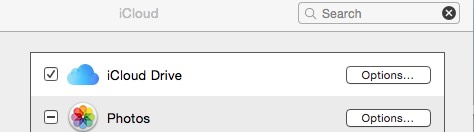
Then click on iCloud
iCloud Drive should have a checkmark on it.
Click on Options
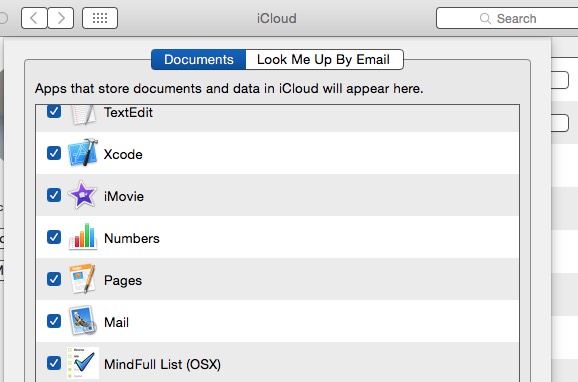
Then scroll down and look for MindFull List
It should have a checkmark to enable it (the checkmark box to the left of the MindFull LIst icon)

Rename a List
Click on the Name of the list at the top of the window. Then click on the down arrow to change the name.
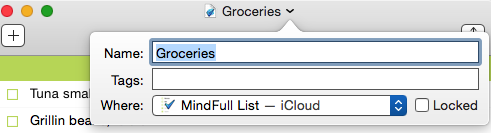
Note: Do not rename the Today list.
|