|
|
Your Mac, Your Bluetooth
Phone and Your BMW
|
February
26th, 2005 What if you could synchronize the contacts in your Apple Address Book to your cell phone? Then when you get in your car, your phone would automatically transfer the contacts into your instrument panel so you could scroll through the names with your steering wheel controls? And then when someone calls you, their name or number would appear in the instrument panel. What if this was all done wirelessly with Bluetooth. How cool would that be? And then when you get out of your car, you take your phone and Powerbook into a restaurant and check your email using Bluetooth while you are waiting for your lunch to be served. That would be cool too! It's real and it is very
cool! |
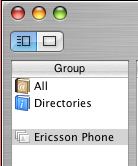
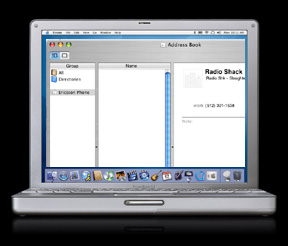
It all starts with the address book in your Powerbook. Address BookOpen your address book and create a new Group called Ericsson
Phone.
|
|
NOTE: If you want to sync your Motorola RAZR V3xx using iSync, you need to install a plug-in called
RAZRV3xx-phoneplugin-Ver5.zip . You can get the plug-in here.
and...
Using Your Mac Powerbook to Connect to the Internet with your Motorola RAZR V3xx Bluetooth Phone
First, you
need to pair your phone with your Powerbook using Bluetooth
Preferences. Make sure that Bluetooth is on in your phone.
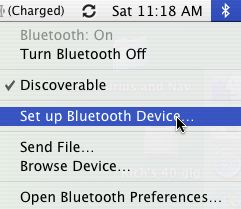
Select "Set up Bluetooth Device..." from the Bluetooth
Menu on your Powerbook. If this menu is not visible, look in
your Application Utilities folder for "Bluetooth Setup
Assistant".
Follow the instructions for pairing your phone.
Open the iSync program and select "Add Device" from the "Devices" Menu.

The T637 icon will be added to your iSync window. Click on the icon and you will see the following options. Note the first option... If you have "Erase data on device then sync" enabled, the contacts in your phone will be erased and replaced with the contents of the address book in your Powerbook. Also note that you can sync your iCal Powerbook calendar with the phone.
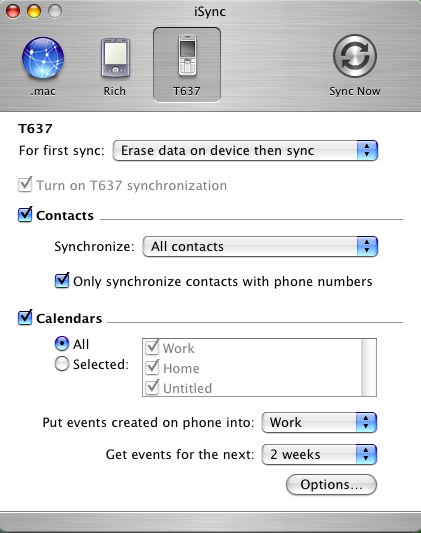
After you get all of the options set the way you want them, Click on the "Sync Now" icon to transfer all of your contacts to the phone.
You need to pair the phone with the Bluetooth in your car so that it will recognize your phone as a valid device. The BMW Bluetooth system supports up to 5 phones. If two people get in the car at the same time with two different phones, it uses the phone that was paired last. You only need to do this once...
1. Depress the send /receive (pairing) button located in the center console or on the steering wheel, for at least 1 second prior to switching on the ignition and continue to hold the button down for approximately 23 seconds after the ignition is turned on.
2. Release the button.
3. Shortly after releasing the button, the following message should be displayed on the Radio or Display Screen, “Bluetooth Pairing”
4. Activate the search function of the phone as indicated below.
ON PHONE:
1. Locate the Connect Menu
and select Bluetooth / My Devices / New Device
2. The Phone should find BMW ULF.
Select
it and follow the indicated steps to complete the pairing process.
5. Once the phone is successfully paired to the phone, cycle the vehicle ignition switch off and back on and the devices should wirelessly connect within 30 seconds. When the connection is established the phone will display a connection symbol that looks like a headset icon.
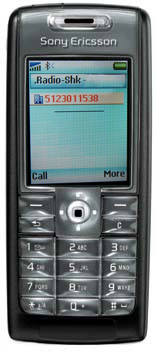
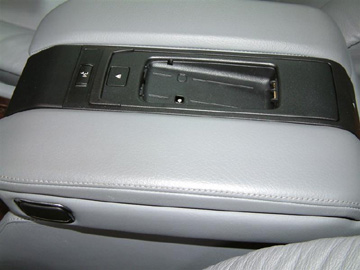
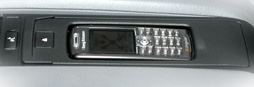
Now that you have everything set up, this is the easy part. Just get in your car and turn on the key. The contacts in your phone will automatically be transferred to the instrument panel of the car. It does this every time you start your car. This is a great system because it allows you to sync your Powerbook address book with the phone anytime you want to add or change a contact. Then the changes will be uploaded to your car system when you start the car. The phone can be on your belt clip or in a purse (anywhere in the car) and it will work. When you make a call, your stereo will mute, and you will hear the phone conversation over the stereo speakers. The microphone built into the car will work also. If your car has the optional phone cradle, it will charge your phone and connect the phone to an external antenna for a stronger signal.
When the phone rings, the stereo will mute and you will hear the phone ring in the stereo. The person calling will appear in the instrument panel (either their name or phone number). Just push the phone button on the steering wheel to answer the call.
You can also use voice recognition to make your calls. For other information about your BMW Bluetooth system, see the BMW Bluetooth Owners Manual .
If you have an older BMW that does not have Bluetooth and your dealer says you cannot get it, you may be able to get a retrofit kit from BimmerNav online.
Other Bluetooth Phone Links...
Using Your Mac Powerbook to Connect to the Internet with your Motorola RAZR V3xx Bluetooth Phone
Using MacWise and Your Mac Laptop to Dial Into Your Host Computer with a Bluetooth Phone
Rich Love is President and owner of Carnation Software
 Keep
up to date with Carnation Software RSS
News Keep
up to date with Carnation Software RSS
News |